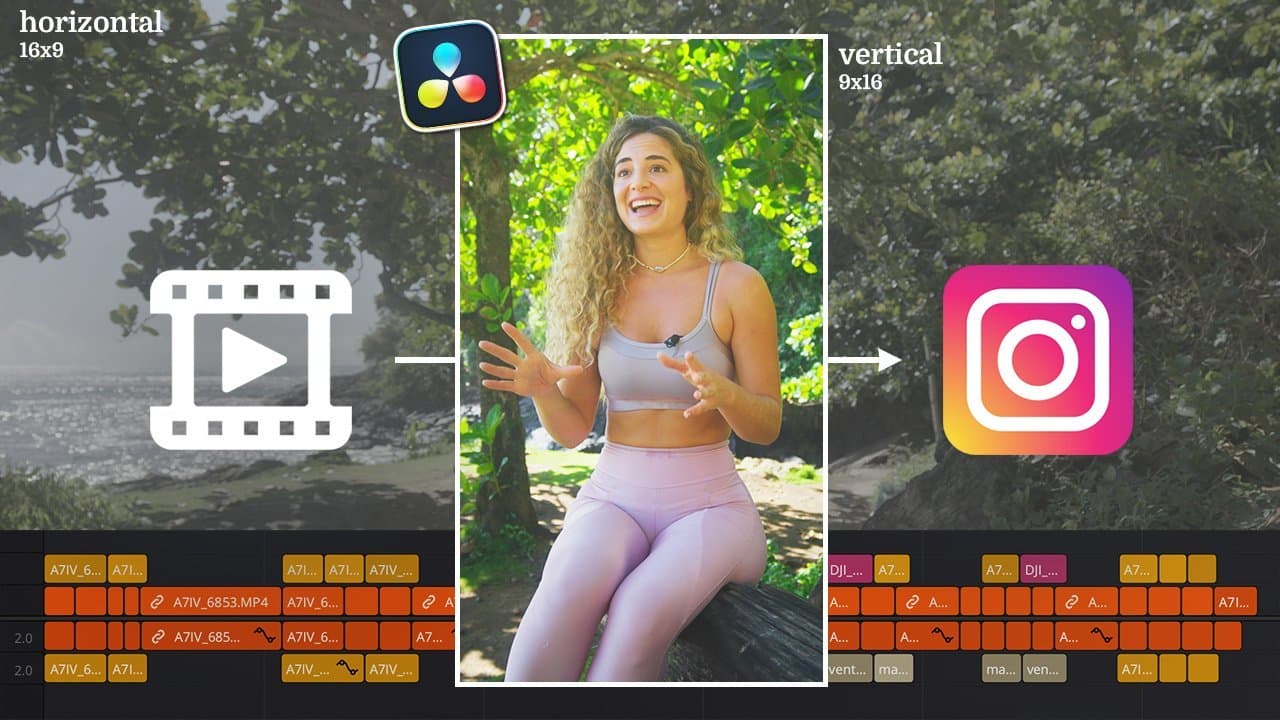
How I turned a 30-minute interview filmed in Itacaré into a 90-second Reel: editing breakdown, edit, and finishing in DaVinci Resolve.
Hi friends!
Today I'm sharing with you my first “video lesson” on a subject I really love: Video Editing.
In this video, I take you on a deep dive into the editing process of a 30-minute interview I filmed in Itacaré, in the southern region of Bahia.
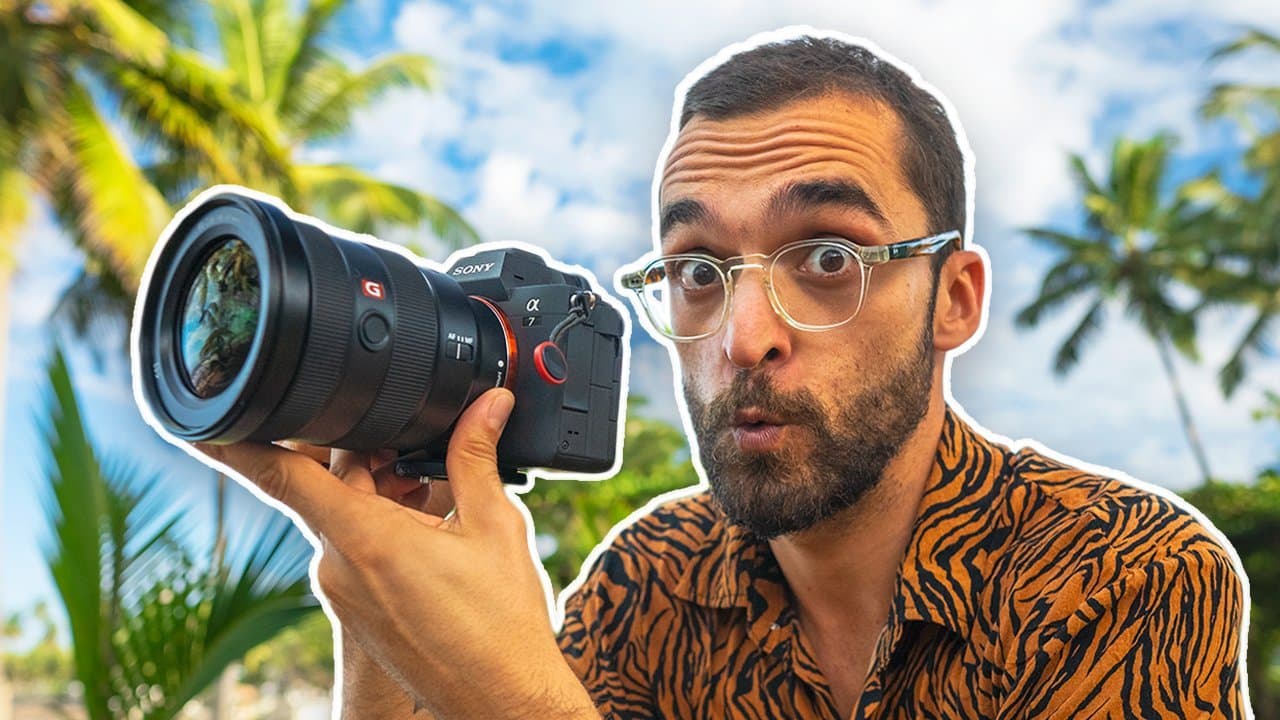
The interview was shot with my Sony A7IV in horizontal 16×9 format in 4K 10bit 4:2:2, with the goal of building a story of just 90 seconds for the Instagram Reels format.
Watch the full content
Gear and tools
- Camera: Sony A7IV, in 4K 10bit 4:2:2 with the S-Log3 profile. Interview at 23.976 fps, B-roll at 60.
- Audio: DJI Mic lavalier, recorded straight into the camera, already synced with the picture.
- Aerials: drone, with Itacaré footage from my archive.
- Editing, color and captions: DaVinci Resolve.
- Music: Artlist, acoustic, instrumental and with no vocals.
- Footage: 27 minutes and 35 seconds of raw interview and about 11 minutes of B-roll.
- Time: about 4 hours of editing, two and a half of them just for logging.
I've been traveling around Brazil for a year with my dog Nina, and in that time I've filmed 20 interviews with people I met along the way. This video is about one of them, Amanda's.
Adobe Premiere, never again
For 8 years my main editing tool was Adobe Premiere, and after facing every kind of technical problem and every bug you can imagine, I happily switched to DaVinci Resolve.
In 2021, when I started negotiating my way out of my partnership at Eyxo Content Agency, I felt it was time to start learning another tool, to sharpen my technical skills in video editing and color grading of my footage.
DaVinci Resolve is the choice of many Hollywood professionals and offers a free version that covers most editing needs. Films like “Avatar” and “Deadpool 2” were edited with it, and now you can do the same with your projects.
The 3 Main Stages
The video above was structured in three stages:
- Logging (project preparation / organizing footage and timelines)
- Editing (building the narrative / composing images with the soundtrack)
- Finishing (color development / audio adjustments / etc)
1. Logging and Organization
Imagine you're getting ready to cook a delicious meal for your friends. What's the first step? Doing the famous Mise en place. The moment to organize and put in order all the ingredients you'll use. Video editing isn't much different.
First, we import all the material into DaVinci Resolve and start organizing. This includes sorting and labeling the footage, as well as separating what's relevant from what isn't. Logging is where we examine every part of the filmed material, use tools like audio transcription to remove unwanted silences, and start putting together a structure for the video. We use shortcuts and techniques to speed up this process, and if you want my shortcuts, I'll leave a link in the description!
Before importing anything, I set the project to 3840 by 2160, which is 4K, and the timeline to 23.976 fps, to get the most cinematic look possible. Then, in the Media Pool, I show the FPS column: everything at 23.976 is interview, and everything at 60 is B-roll. I create a “brutas amanda” (Amanda raw footage) folder and, inside it, one for the interview and one for the B-roll.
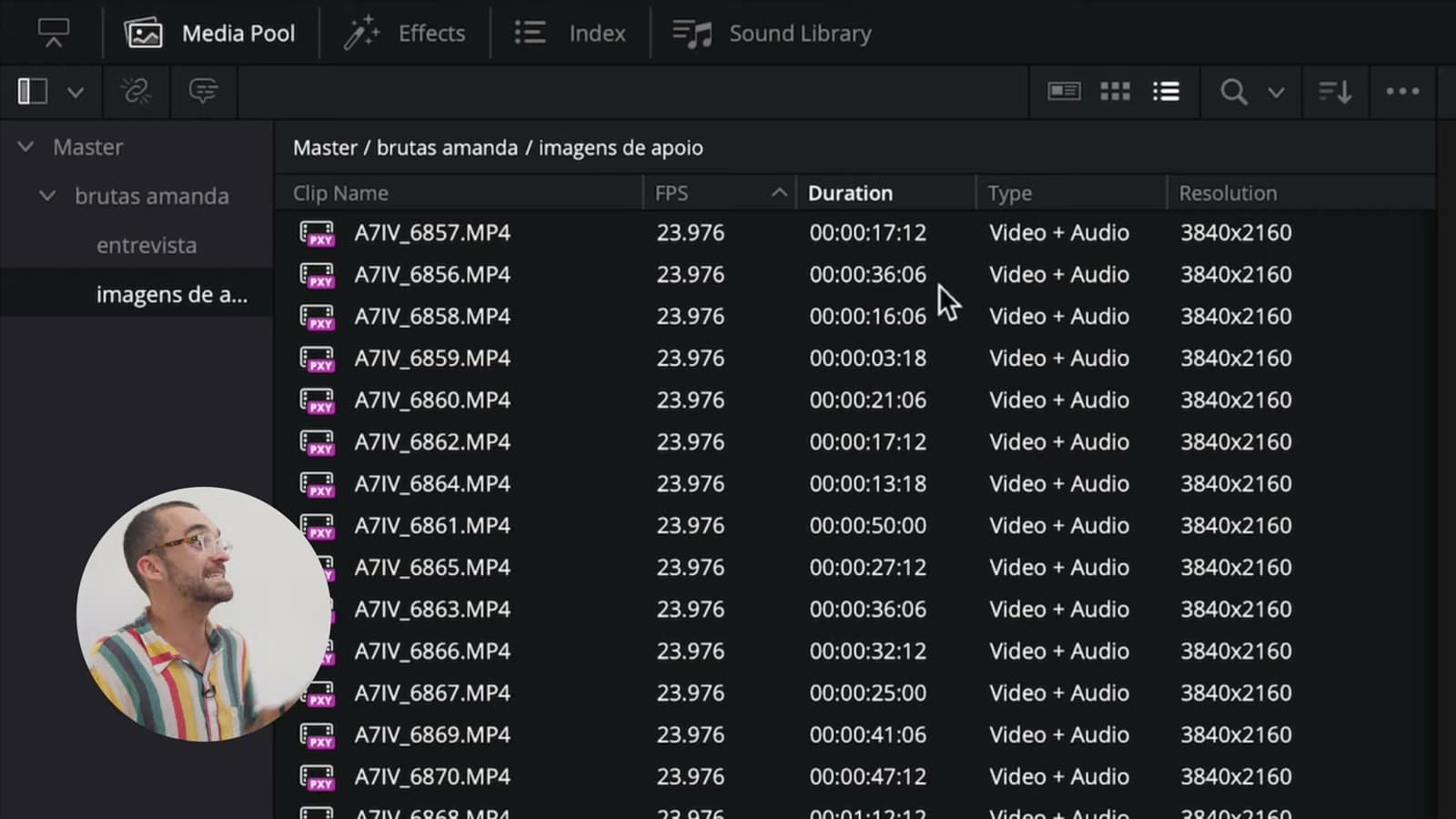
A trick that saves a lot of time: I select all the B-roll shot at 60 fps, right-click, go to Clip Attributes and switch everything to 23.976. A 7-second clip becomes a 17-second one, already in slow motion. That way I don't have to pick, one by one, which shot is going to be slow and which isn't.
With everything sorted, I create a timeline for each thing (the interview log and the B-roll log) and give each type of clip a color: orange for the interview, yellow for the B-roll. Later on, pink for the drone, chocolate for the music and tan for the sound effects.
First, just cut the pauses
On the timeline, the raw interview ran 27 minutes and 35 seconds. The first pass is pretty mechanical: I go from start to finish cutting out the silences, the pauses and my own lines giving her directions. Something that helps is cranking up the audio volume at this point, just to see the waveforms better. With the shortcuts I set up, the Q key cuts everything before the playhead and W cuts everything after it.
The start of an interview is always a bit clunky, because the person is still nervous. That's why I always ask for an introduction at the beginning and again at the end, when they're more relaxed after 20-something minutes of conversation. Just from this cleanup, the timeline went from 27 minutes down to 18 minutes and 56 seconds.
What do we want to tell?
Here's where logging gets harder, because it's time to decide exactly which lines make the cut. The question is: what do we want to tell with this video? Amanda was born in Brasília, moved to Itacaré, really loves yoga and always dreamed of surfing. She's living a different moment in her life, and the idea is to bring out the highlights of what she told me.
I sit down and watch the nearly 19 minutes, and whatever catches my attention I move up to the track above. Then I duplicate the timeline, delete everything left below and, with Command + Shift + Delete, close all the gaps between the shots. That got me to 6 minutes and 29 seconds, and I kept trimming hard until I reached 1 minute 34, leaving a 7-second gap in the middle for the intro bumper.
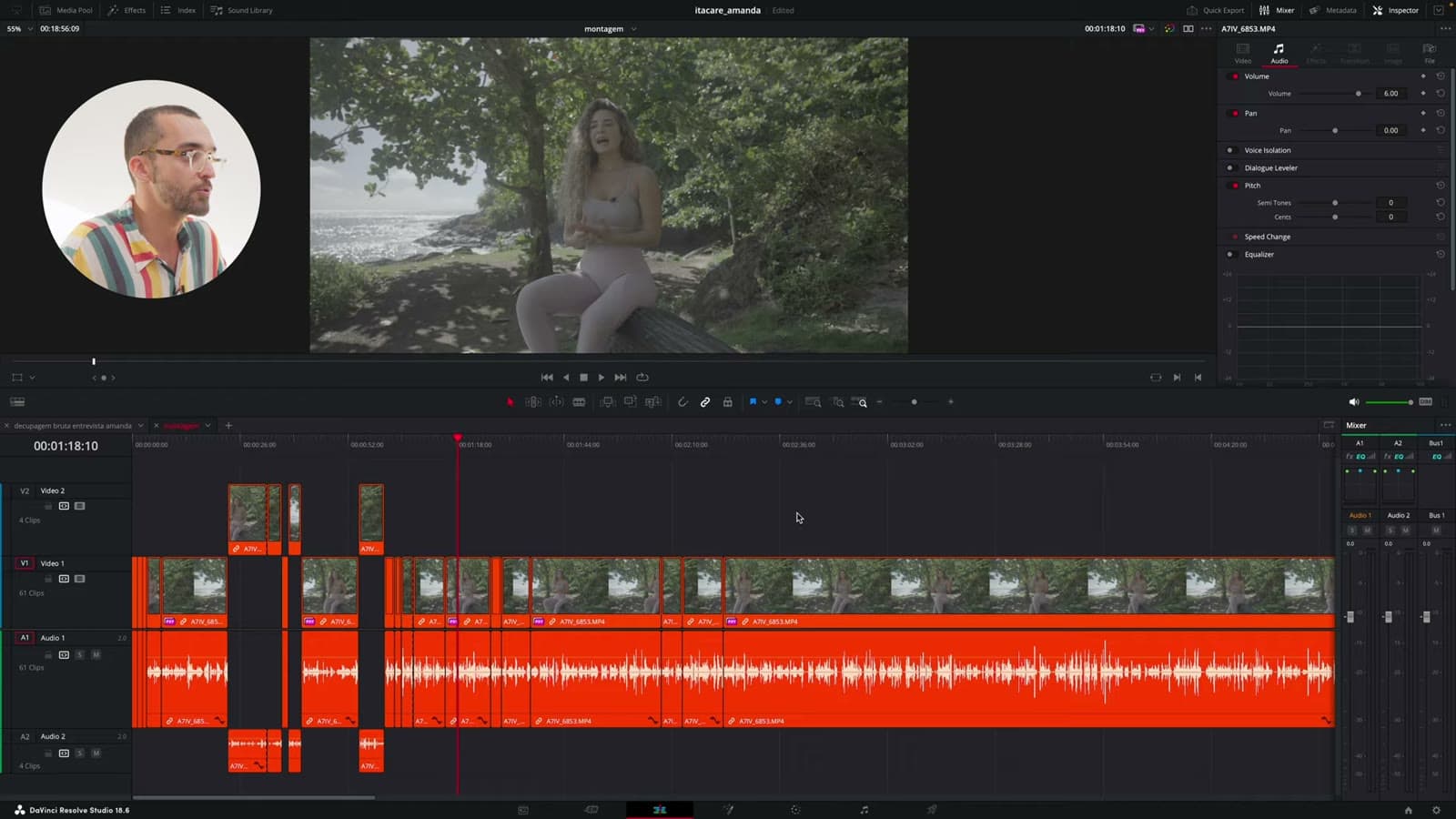
A few joins show, because at some point I moved the camera angle because of the sun. But I always avoid rebuilding what the person said. I want this story told as naturally as possible, and our job in editing and finishing is to make the most of what was recorded.
2. Editing
With everything organized, we move on to Editing. Here, we focus on building the video's narrative. We choose the best lines and shots that convey the main message of the interview. For a REEL, the idea is to condense the content while keeping an engaging narrative with a beginning, middle and end.
Before cutting, I do with the B-roll the same thing I did with the interview: I watch it all and keep the best moments. I had about 15 minutes to film Amanda, so I worked fast, handheld, and that's why I like shooting at 60 fps: it gives you more footage to play with. It's worth watching at normal speed too, because sometimes a shot ends up too slow. Out of 11 minutes of B-roll, I was left with 4 minutes of good shots.
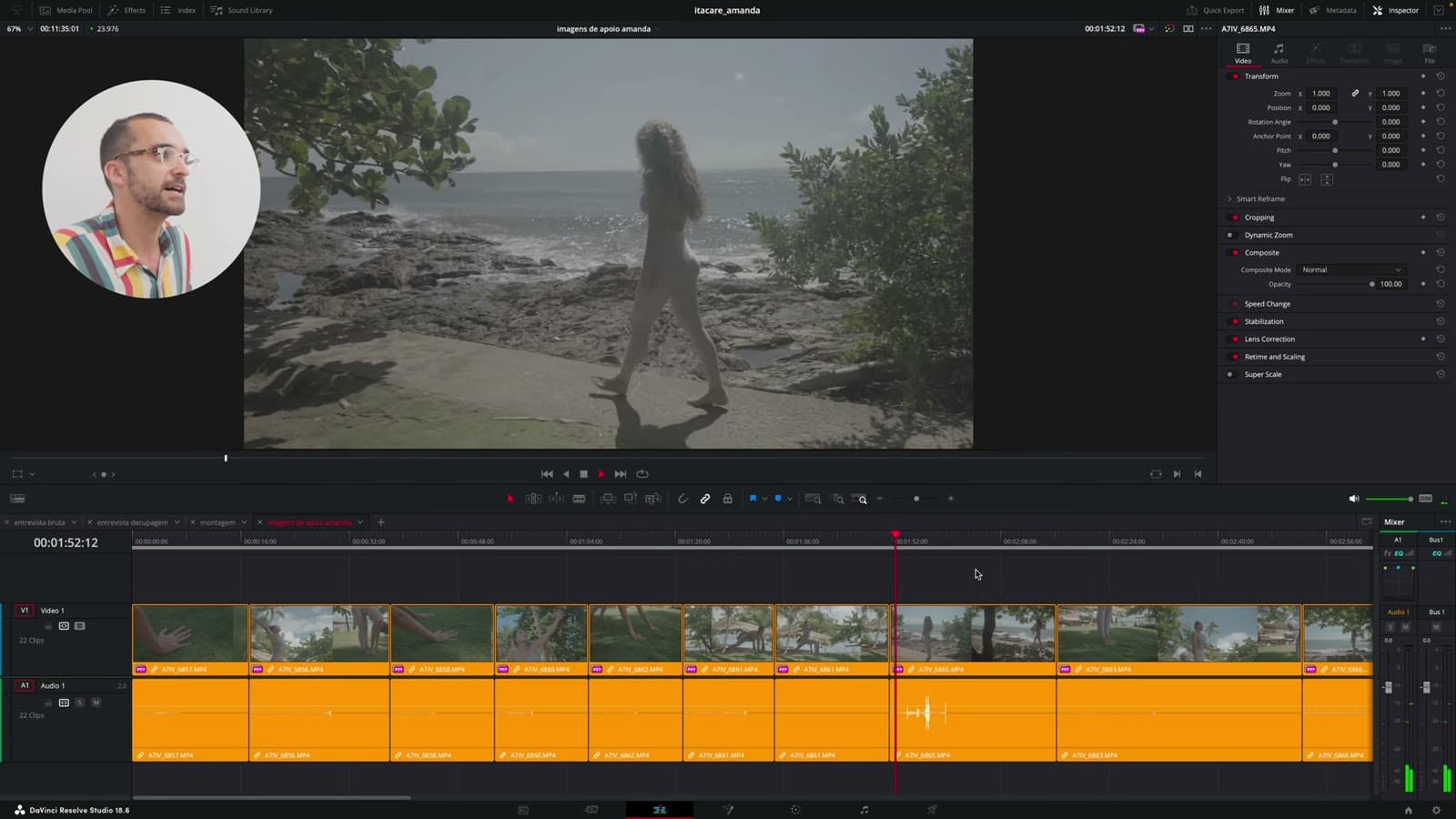
An important part of this stage is creating a good composition between sound and image. I always like to add soundtracks that dialogue with the images in a way that adds to the context, allowing the story to be told naturally, with a touch of poetry and art.
The music library I currently use is Artlist.
I always pick four, five, six tracks to try out. Since Amanda's story talks about yoga, the beach, nature, breathing and spirituality, I chose one more meditative track and others with a slightly faster beat, all acoustic and instrumental. I set the volume in exact steps (0, -5, -10, -15, -20) and fine-tune afterwards.
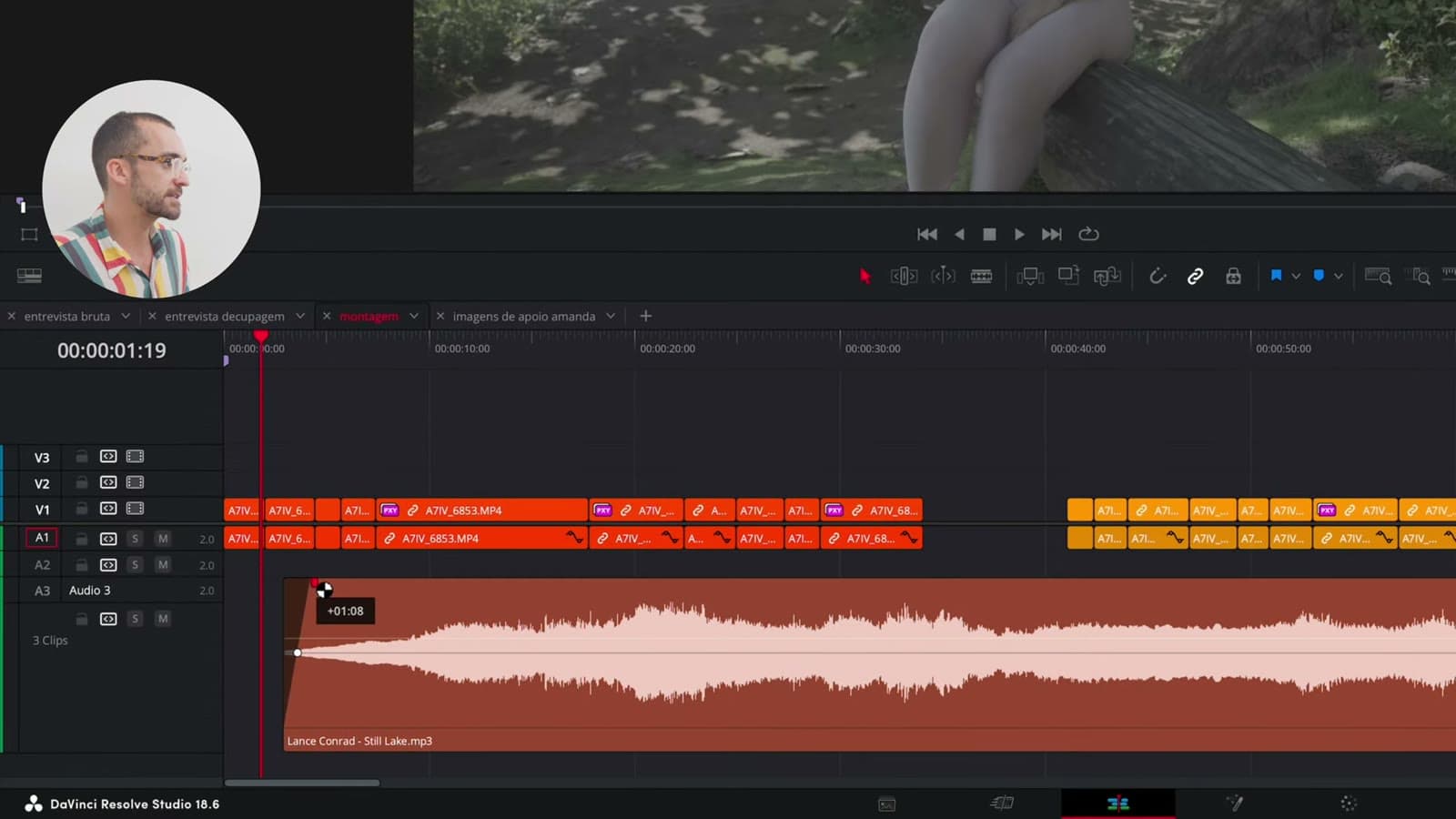
To edit the music, I count the beats (1, 2, 3, 4) to understand the bar and always cut in the right place, removing the repetitive parts and grabbing the more interesting sections, all the way to the end of the track. Before that, I lock the interview tracks so I don't move them by accident. They're hard cuts on the music, and a crossfade when needed.
With the base ready, I paste in the bumper for the Brasil com B maiúsculo series, which I already have ready in another project, and switch the timeline to vertical: right-click the timeline, Timeline Settings, Use vertical resolution. The cut landed at 1 minute 28.
B-roll that tells a story
To cover the interview, I open the B-roll timeline next to the edit (DaVinci lets you work with two timelines at once) and move small bits up to track 2. I like telling a little story with these shots: at the start, I don't reveal Amanda's face, I use wide shots that set up where the character is and spark curiosity. When she says she came to Bahia, an aerial shot of Itacaré comes in.
I also don't strip the original audio from the shots, because I think it adds extra body to the video. And I let Amanda appear talking several times between the B-roll, to show that what I'm telling is real, that it's not just a bunch of pretty shots laid on top.
3. Finishing
Finally, we get to Finishing. This stage is where we give the video its final touch. We apply color correction to improve the look of the footage, especially because the S-Log 3 footage from my Sony A7IV needs adjustments. We group and adjust the colors to bring the material to life.
Before color, I fix the framing. I have some effects saved in Power Bins, which work in any project: ready-made zoom in and zoom out, which are nothing more than an adjustment layer with dynamic zoom, always very subtle. I also keep a grid saved to check the horizon. In one shot it was crooked, and I rotated it 1 degree.
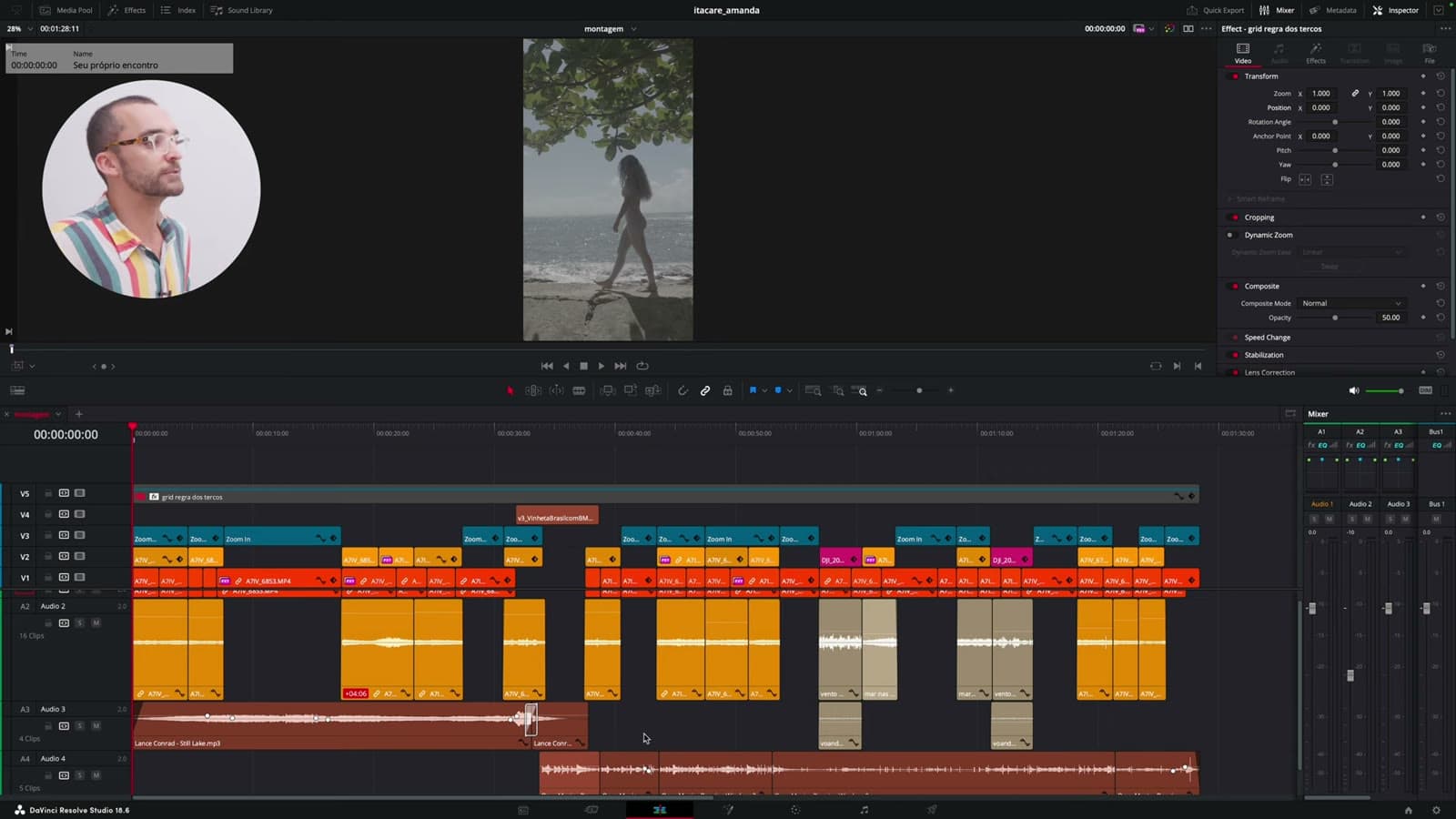
For audio, I solo the B-roll track and bring back the original sound of the raw clips, with a light crossfade so nothing hits too hard. The drone doesn't record sound, so sound effects come in, like waves on the rocks.
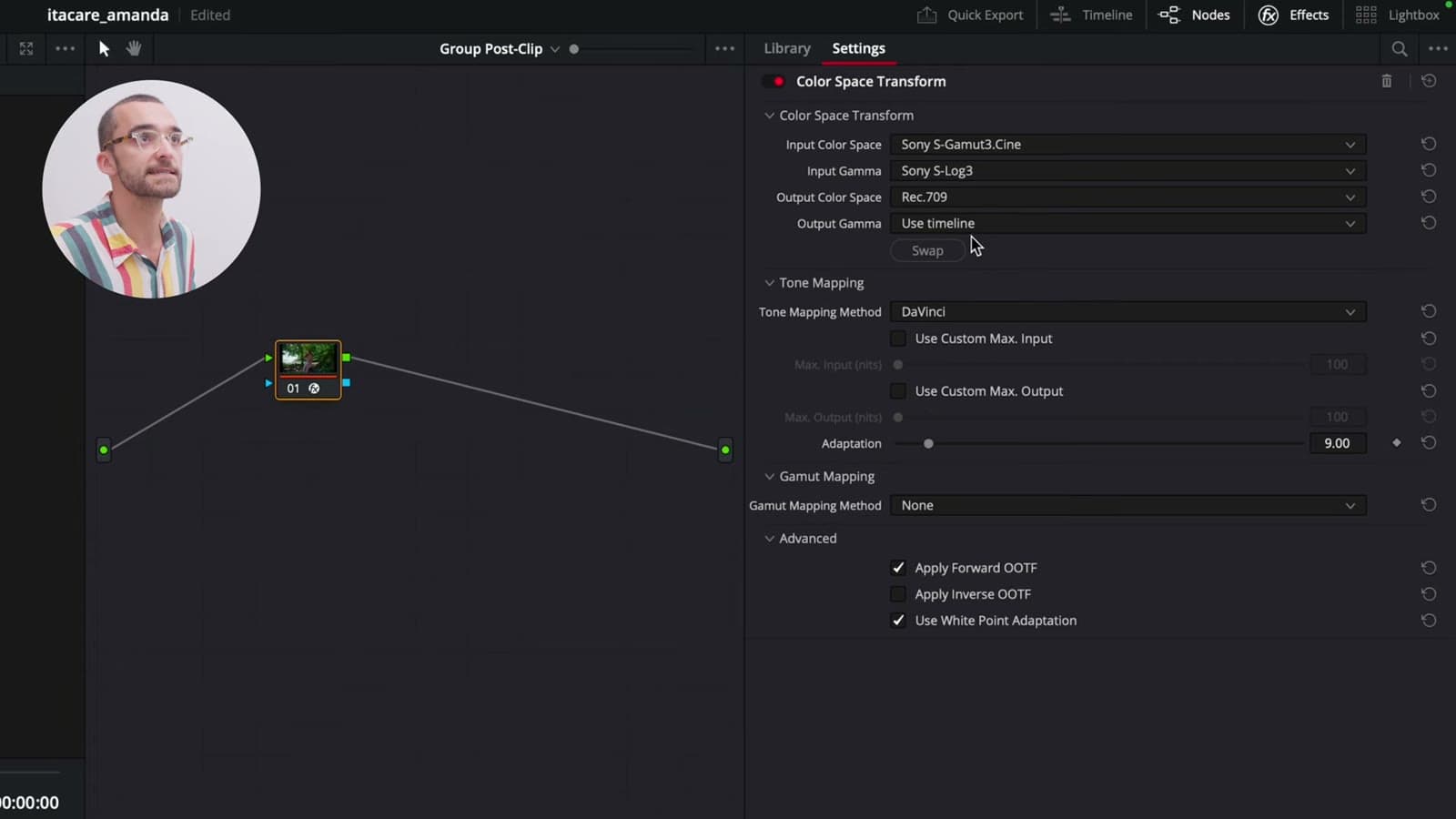
On the color page, I filter the clips by the color I gave them in the edit and start with the interview. I select them all, create a group and, in Group Post-Clip, apply a Color Space Transform: input Sony S-Gamut3.Cine and S-Log3, output Rec.709.
In Group Pre-Clip, I always start with the curves, which only touch the blacks and whites, without touching the colors. Watching the scopes, I don't let the whites clip or the blacks go fully black. Then come the color wheels node, an oval mask to make Amanda pop (with a touch of mid detail, without overdoing it) and the color warper, my favorite tool, to saturate only the greens and the skin tones. When grading, I turn off the proxies to see the image at full resolution.
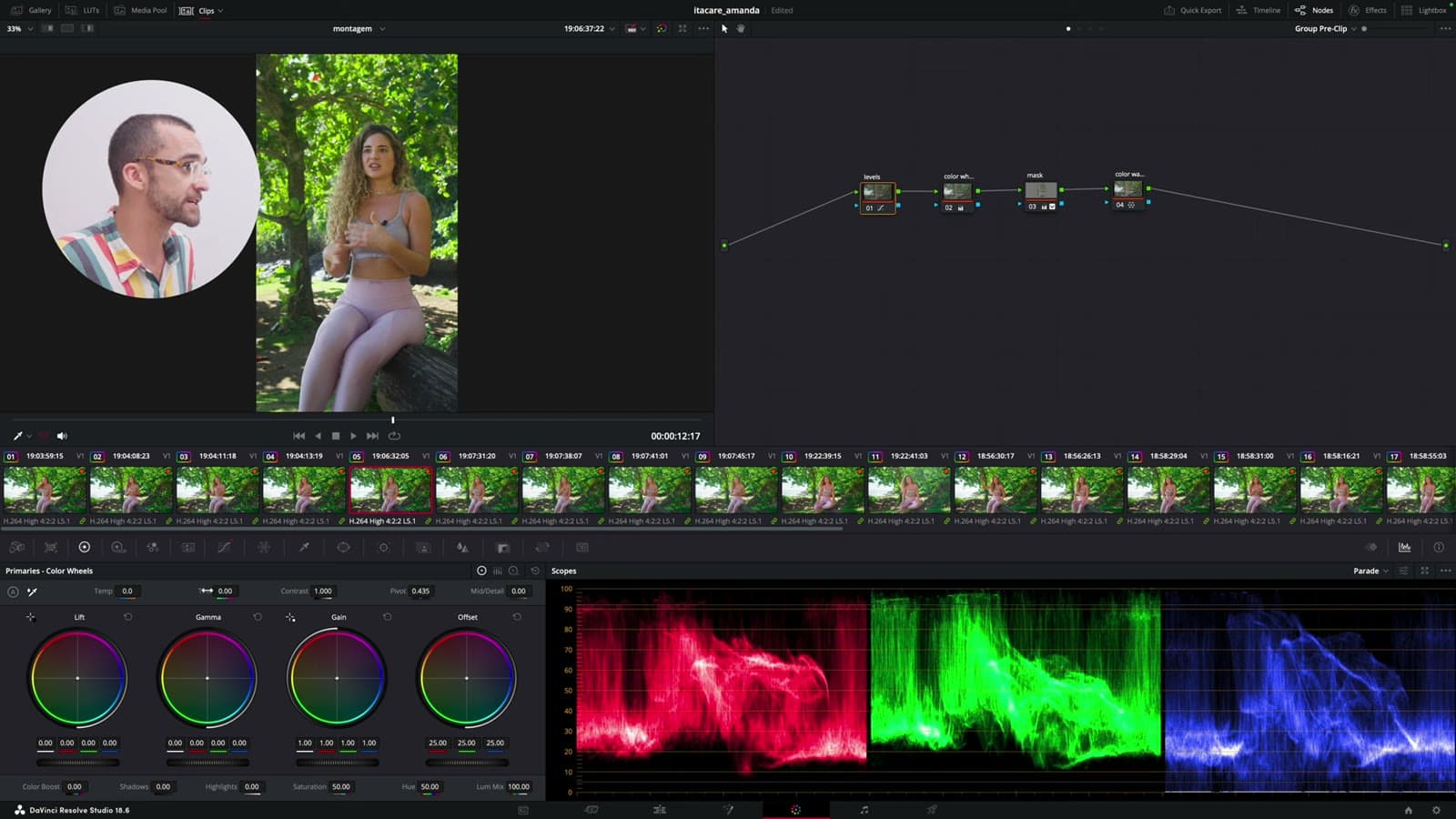
I'm not a professional colorist. I like a quick, simple and effective process, and in a few clicks all the interview shots were done. On the drone shots, which don't get the Color Space Transform, I start with white balance using the eyedropper on the water and finish with a faint vignette, almost unnoticeable. The B-roll gets its own group and then a few clip-by-clip tweaks.
On top of that, we improve the audio quality using the Fairlight tab in DaVinci Resolve, making sure the sound is clear and professional. It's the stage where everything comes together to create a polished video, ready to be shared.
Captions and export
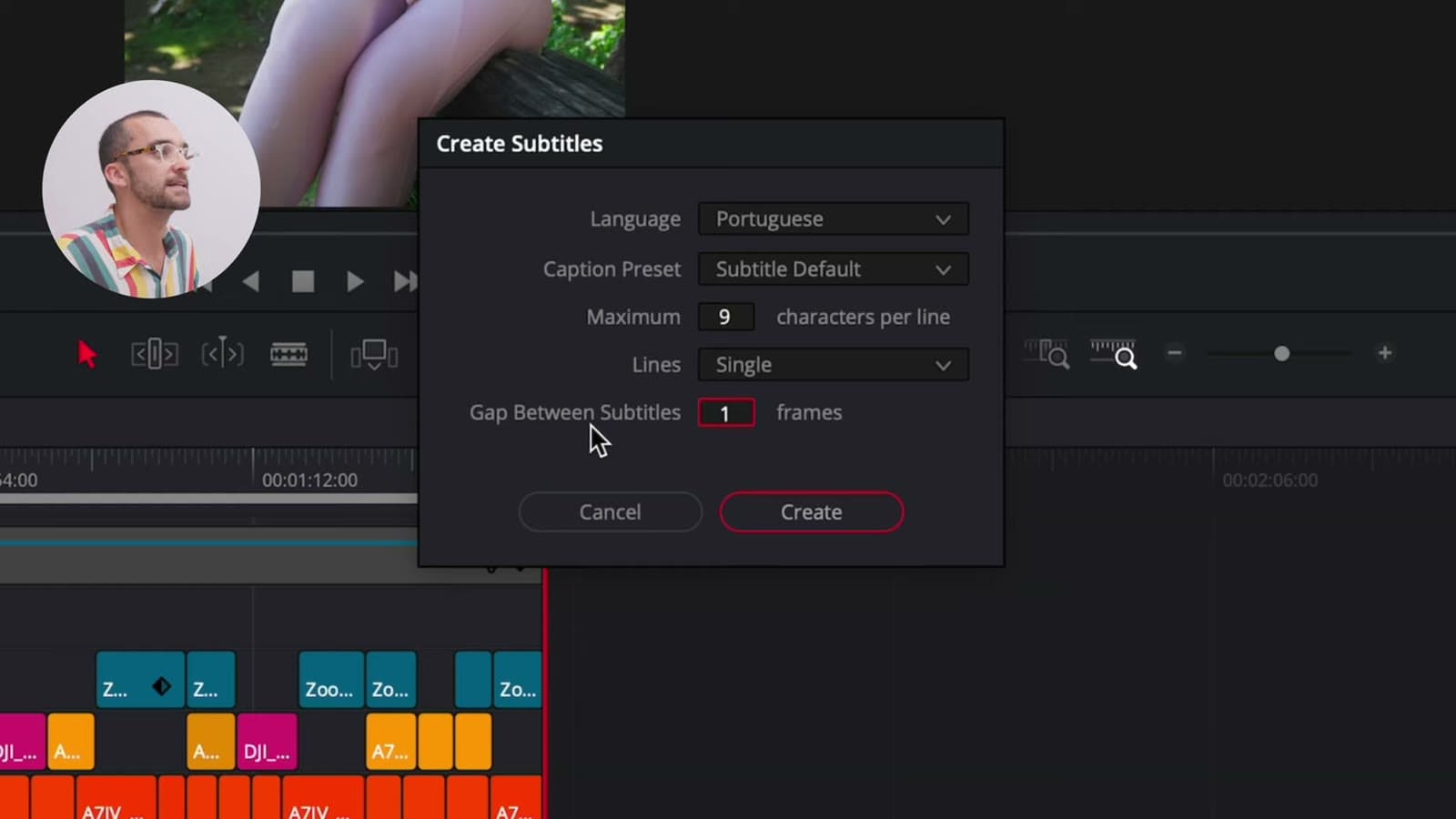
The last step is captions: Timeline, Create Subtitles from Audio, with 9 characters per line, a single line and a 1-frame gap between captions. Then I load the caption preset I already have ready for the series, with the right font and color, and review caption by caption. On export, in H.264, I check the option to burn the captions into the video.
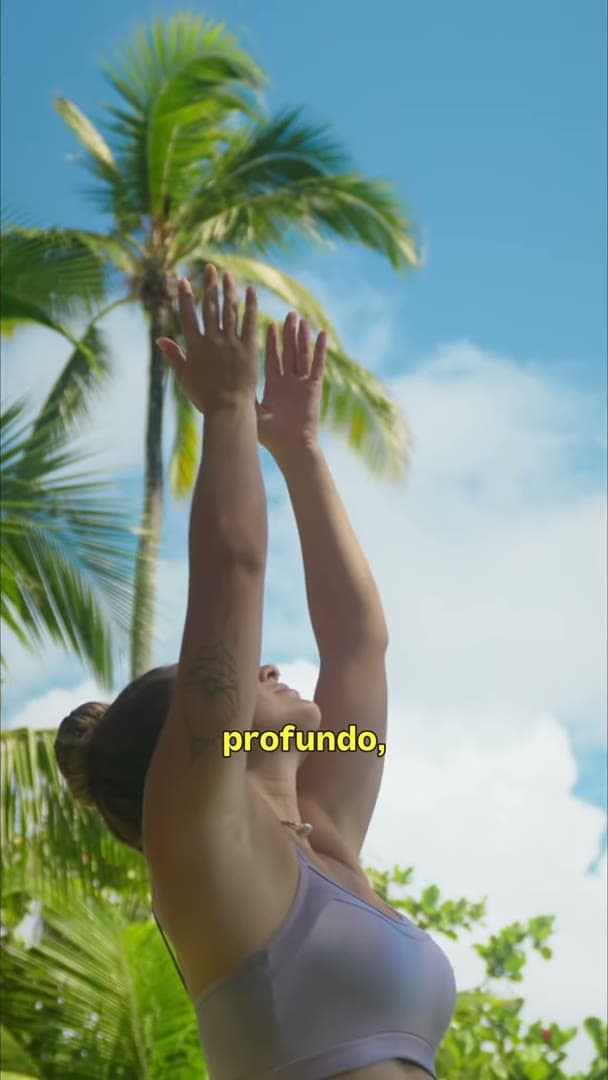
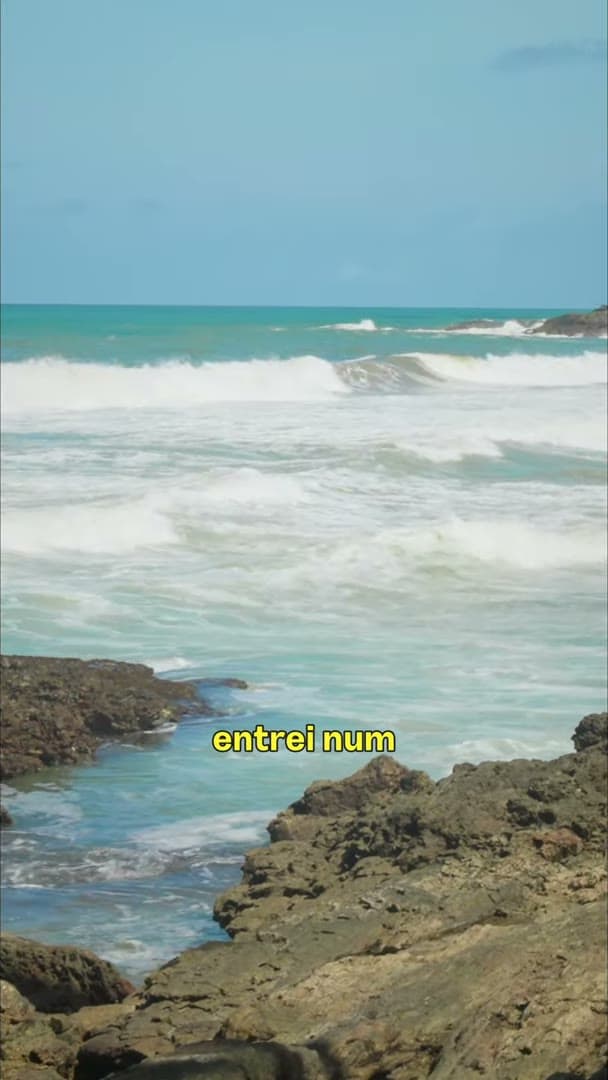
Turning raw footage into a finished video is an art full of details.
Enjoyed it? Subscribe over on YouTube to keep up with the next pieces of content 😉
Thank you!
Tags
- # video editing
- # davinci resolve
- # logging
- # color correction
- # finishing